Increase image resolution with EzFoto AI. Choose your scale and optional face enhancement. 1 free attempts daily, no sign-up. Review and download in My Works.
BEFOREAFTER
↔
Upload Image
Drag & drop or click to browse
JPG, PNG, WebP · Up to 10 MiB One image at a time · No account needed
An AI image upscaler increases an image’s pixel dimensions and predicts additional visual detail. EzFoto AI’s image enlarger applies your selected scale to both width and height while keeping the proportions. Choose up to 10×, with 2× as the default.
EzFoto AI is an online AI photo editor. Its upscaling tool is for photographers, designers and store owners who need a larger version of an existing image without writing an editing prompt.
Predicted detail is not evidence of what the camera captured. Keep the original and review the result, especially faces, lettering and textures.
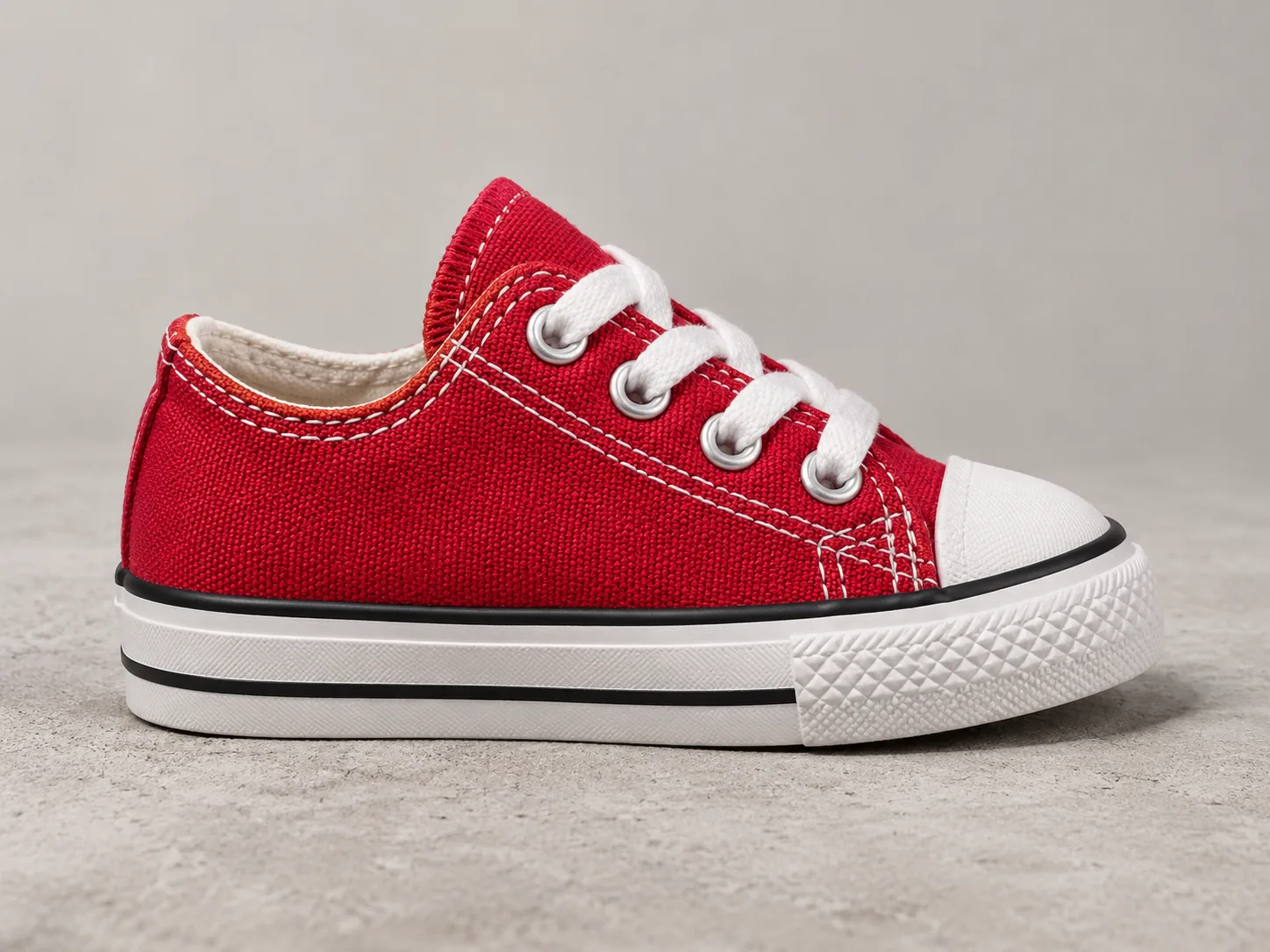
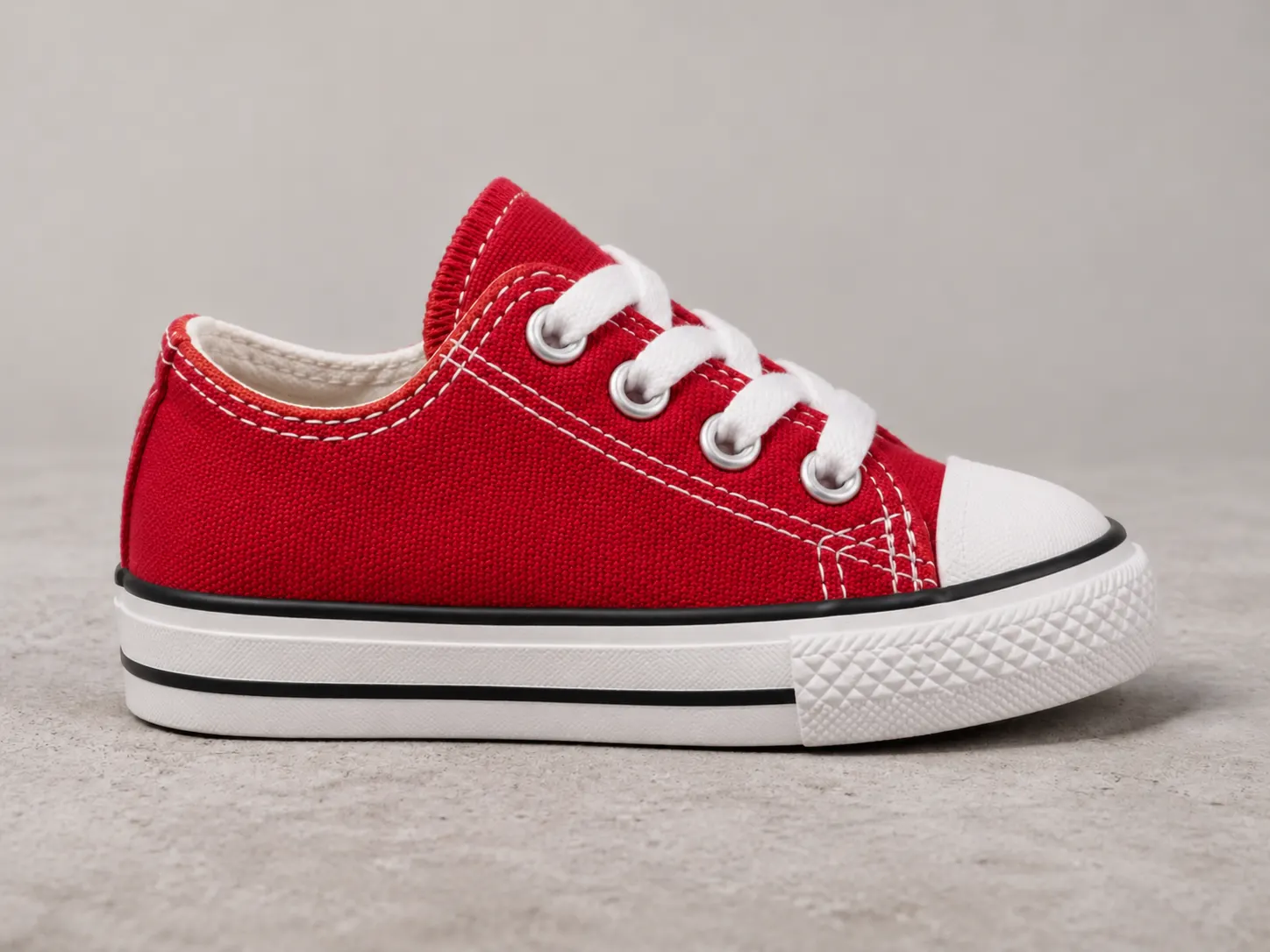
Prepare product photos for larger catalog cards, store listings and presentations. Compare the fabric, stitching and edges in the before-and-after view.
A closer look
Look closely at the canvas weave, stitching and rubber sole. Use the slider to compare fine detail while keeping the product at the same display size.
Upload one photo, choose a scale and optional face enhancement, then review and download the result in My Works.
01
Upload your image
Choose one JPG, PNG or WebP up to 10 MiB. Use the best original available. The upload preview shows the source dimensions and estimated output size for your selected scale.
02
Choose your scale and face setting
Set a factor greater than 0 and up to 10×; the default is 2×. Enable optional face enhancement for a portrait if needed. Select Upscale image and complete verification if prompted. No prompt is needed.
03
Review and download in My Works
My Works opens after your task is created. Wait for completion, preview the result, and check it against your original. Download a local copy of the image you want to keep.
PIXEL DIMENSIONS, NOT JUST A LABEL
How scaling increases image resolution
EzFoto AI multiplies both width and height by your chosen factor. At the default 2×, that gives four times the pixel count; at 4×, it gives sixteen times. The preview estimates output dimensions before you submit. The examples below use 2×.
Calculated 2× sizes — examples, not measured processing results
Original size (px)
Target size (px)
Pixel count
800 × 600
1600 × 1200
0.48 → 1.92 MP
1000 × 750
2000 × 1500
0.75 → 3 MP
1920 × 1080
3840 × 2160
2.07 → 8.29 MP
Does 2× or 4× mean 4K?
No. A multiplier describes enlargement; 4K UHD describes a frame of 3840 × 2160 pixels. A 1920 × 1080 source targets those dimensions at 2×, as does a 960 × 540 source at 4×. A smaller source at the same scale may fall short. Check the downloaded file’s dimensions before choosing a final placement.
CHOOSE BY YOUR PROJECT
Upscale photos, product images and artwork
A larger file gives you more placement options. The source quality and accuracy of the added detail still matter.
Photos and portraits
Use the photo upscaler to give a small portrait more room in a profile, presentation or photo layout. Check eyes, hair and skin texture against the original; extra detail may be artificial.
Product photos for online stores
Enlarge a product image for a larger listing or catalog placement. Store owners should compare packaging text, logos, colors and material texture before publishing a result.
Illustrations and AI artwork
Give an illustration or AI-generated image more pixels for a design project. Designers should inspect outlines, lettering and repeating patterns. This is not a dedicated pixel-art or anime model.
PLAN YOUR PRINT SIZE
Can I upscale an image for printing?
Yes, but choose the output by pixel dimensions and your printer’s requirements. More pixels alone do not guarantee a sharper print.
Example: an 8 × 10 inch print
At a chosen resolution of 300 pixels per inch (PPI), an 8 × 10 inch print needs 2400 × 3000 pixels: multiply each side in inches by 300. A 1200 × 1500 source targets those dimensions with EzFoto AI’s 2× upscaler.
300 PPI is the setting for this example, not a requirement for every print. Ask your print provider about size, paper and viewing distance. Changing a DPI metadata value alone does not add image pixels.
Inspect the final image at full size, then consider a test print. Check faces, fine lines and text rather than judging only by the file’s pixel count.
BEFORE YOU UPLOAD
Formats, free allowance and downloads
Upload a single JPG, PNG or WebP and use 1 free attempts daily without an account. The allowance resets at midnight in New York time and is separate from editing and restoration.
Availability is checked when you submit. Processing time varies. My Works stores history in the current browser, so download any result you want to keep.
Input
One JPG (JPEG), PNG or WebP, up to 10 MiB
Scale
Greater than 0, up to 10×; default 2×; original proportions
Faces
Optional face enhancement, off by default
Free use
1 attempts per day; no sign-up; human verification required
PNG input is supported. Verify transparency in the downloaded result.
REVIEW WHAT CHANGED
What image upscaling can and cannot do
Upscaling creates a larger image and may improve the appearance of soft edges. It cannot guarantee the recovery of missing text, heavily blurred features or authentic historical detail.
Start with your original file. After processing, compare eyes, logos, lettering, colors and repeating textures. Look for invented patterns or bright halos around edges. A clearer-looking detail can still be inaccurate.
Need a different kind of edit?
For guided colorization of an old photograph, use AI Photo Restoration. To describe changes to a background, lighting or style, open the AI Photo Editor. These workflows serve different tasks from increasing pixel dimensions.
Is this a free image upscaler? Do I need an account?
Yes. EzFoto AI provides 1 free upscaling attempts per day without sign-up, with preview and download in My Works. The allowance is separate from photo editing and restoration and resets at midnight in New York time. Human verification and an availability check apply when you submit. This is an attempt allowance, not a guarantee of 1 successful results.
Can I choose 4×, 8× or a custom scale?
Yes. Set a scale greater than 0 and up to 10, including 2×, 4×, 8× or a decimal factor. The default is 2× and the original aspect ratio is kept. A factor below 1 reduces dimensions rather than enlarging them. Output dimensions are estimates; check the downloaded file. There is no field for an exact custom width and height.
What does face enhancement do?
Face enhancement enables additional processing of facial detail. It is optional and off by default. It may change a person’s appearance, so compare the result with the original before using it. It does not guarantee identity preservation or recovery of authentic missing details.
Can I upscale an image to 4K?
It depends on the source dimensions and selected scale. A 1920 × 1080 image at 2× or a 960 × 540 image at 4× targets 3840 × 2160 pixels, the dimensions of 4K UHD. An 800 × 600 image at 2× targets 1600 × 1200. A multiplier such as 2× or 4× is not a fixed output resolution.
Can I upscale an image without losing quality?
AI upscaling predicts additional detail rather than recovering a verified original. An enlarged image may look clearer, but faces, text, patterns and edges can change. Keep the source and compare important details at full size before using the result.
Will the upscaler fix a very blurry photo?
There is no guarantee. Soft edges or compression may improve, but severe motion blur, tiny lettering and missing textures cannot be reliably recovered. Start with the clearest original available rather than a screenshot or repeatedly compressed copy.
Which formats and file sizes are supported?
Upload one JPG (JPEG), PNG or WebP up to 10 MiB. Batch uploads, animated GIFs, SVG and PDF files are not supported by this workspace. PNG input support does not guarantee transparent output; check the downloaded file if transparency matters to your project.
Is upscaling the same as photo restoration?
No. Upscaling increases pixel dimensions. Photo restoration addresses the appearance of an old photo, such as colorization. This image enlarger has no colorization preset, scratch-repair control or editing prompt. Use the separate Photo Restoration page for its guided restoration workflow.
Where can I download the upscaled photo?
After the task is created, My Works shows its status, completed preview and download action. History is stored in your current browser and does not automatically sync across devices. If submission is interrupted, check My Works before trying again. Download files you want to keep because result links may expire.
Are uploaded photos stored or processed on my device?
File selection creates a local preview, but submitting uploads the image to EzFoto AI’s service and its processing provider. The service does not promise immediate deletion or a fixed automatic retention period. Deleting a My Works entry removes local history, not backend or provider files. Read the Privacy Policy before uploading sensitive images.
Ready to enlarge your image?
Upload a photo, choose your scale and review the result.