Upload a photo to the free AI photo editor and describe what you want to change. Get 5 free Base edits with Qwen and 2 free Advanced edits with GPT Image each day. No account needed.
Explore image styles and templates
Pick a style. Make it yours.
Start with a specific change
Edit Photos with AI Prompts
Looking for an ez image editor online? Start with your own photo and tell the AI photo editor what to change. These illustrated editing ideas show how to request a new background, remove a distraction, or try a different visual style with EzFoto AI.
BeforeAfter
‹ ›
Illustrative editing example · AI-generated imagery
01 / EDITING IDEA
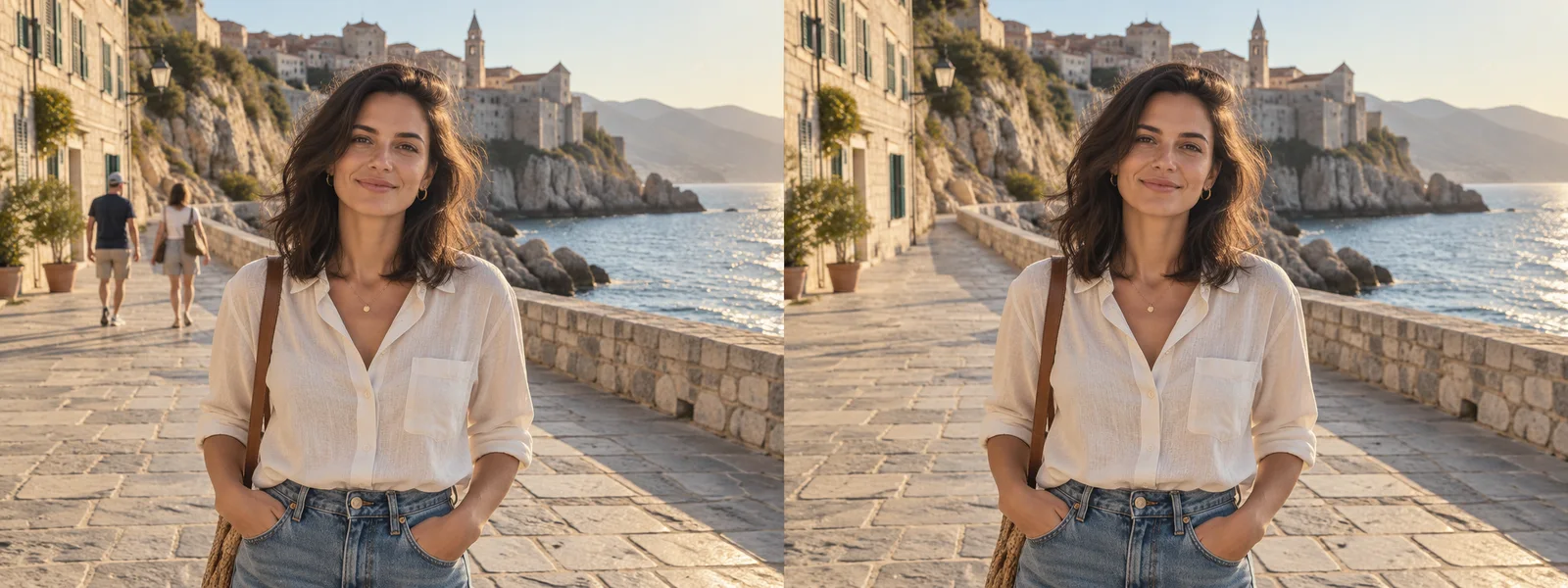
Remove Unwanted People and Objects
Ask the AI photo editor to remove a distracting person or object by describing its location. Identify the main subject to keep, and ask for the original lighting and camera angle to stay consistent.
Remove the people in the background. Keep the main subject, camera angle, and original lighting unchanged. Fill the removed areas to match the surrounding scene.
Check the resultCheck the filled area for repeated textures, missing details, and changes to the main subject.
BeforeAfter
‹ ›
Illustrative editing example · AI-generated imagery
02 / EDITING IDEA
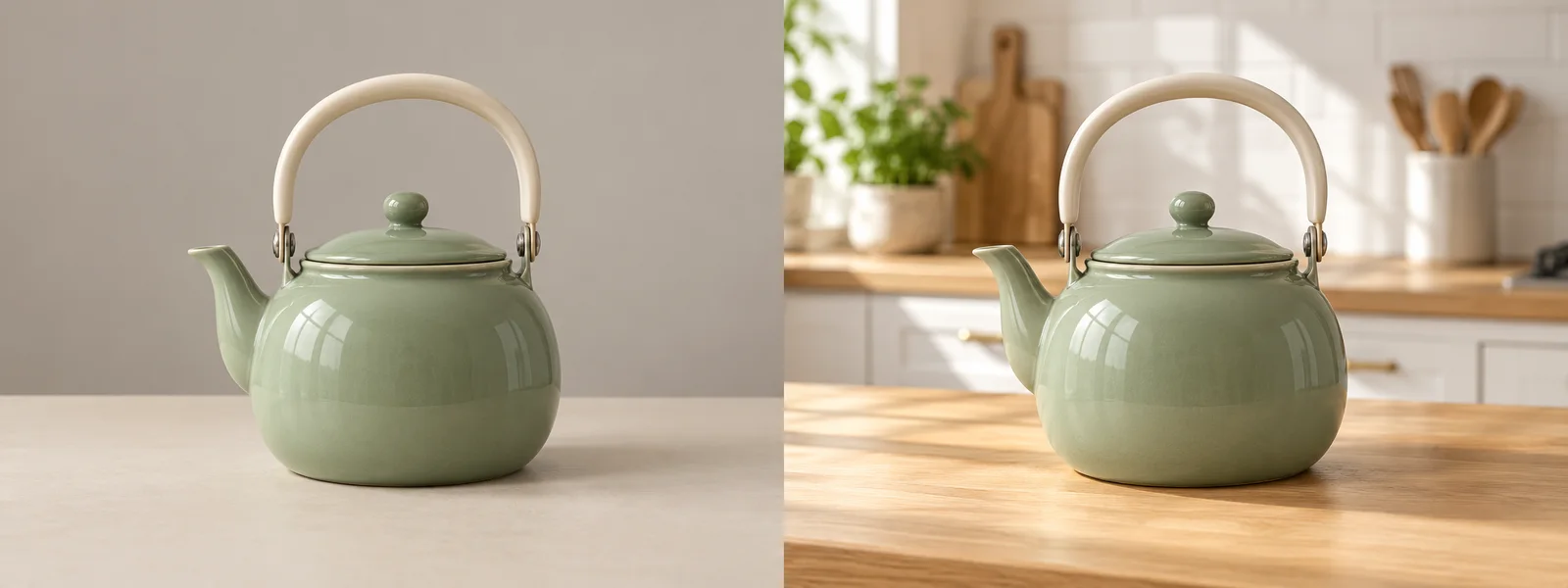
Change Photo Backgrounds
Give a product photo a different setting with the photo editor. Describe the new scene and list the product details you want to preserve, including its shape, colors, and label.
Replace the background with a bright modern kitchen. Keep the product's shape, colors, and label unchanged. Match the new background lighting to the product.
Check the resultCompare product text, proportions, edges, and contact shadows with the original photo.
BeforeAfter
‹ ›
Illustrative editing example · AI-generated imagery
03 / EDITING IDEA
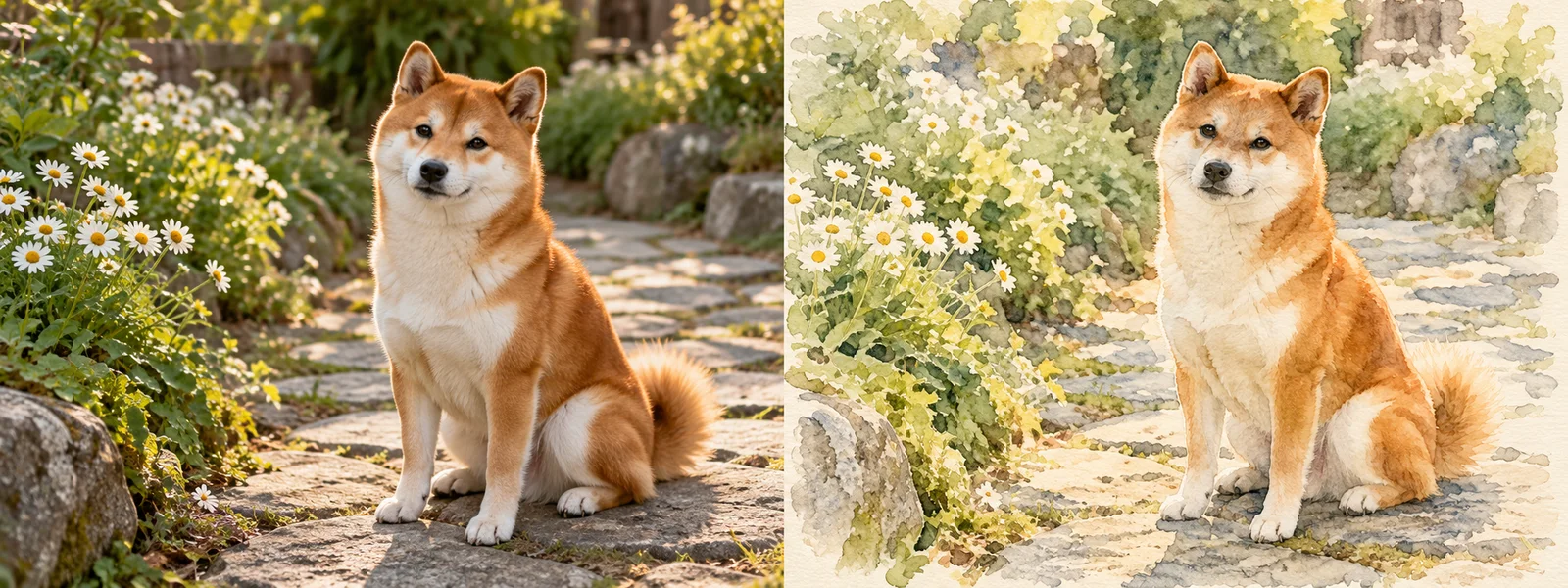
Restyle Your Photos
Use the photo editor to turn your photo into a watercolor illustration. Name the style and the features that should remain recognizable, such as the pose, expression, and composition.
Turn this photo into a soft watercolor illustration. Preserve the dog's pose, expression, fur colors, and overall composition.
Check the resultCheck that the subject is recognizable and that the pose, colors, and composition still match your intent.
Upload. Describe. Review.
How to Edit Photos with EzFoto
This browser-based photo editor lets you edit photos with text, without installing an app. Start with your photo, then work through one change at a time.
STEP 01
Upload Your Photo
Upload a JPG, PNG, or WebP to the online photo editor, up to 10 MiB per image. Use a clear main photo; you can also add an optional reference image.
STEP 02
Describe Your Edit
Tell the photo editor which subject to change and what should stay. Choose Base or Advanced, review the aspect ratio, then select Generate and complete the verification.
STEP 03
Review and Download
Compare the result with your original. Check faces, small text, edges, and colors, then use the result's download control to save the image.
Use the AI photo editor with a prompt that names the change, describes the result, and lists the details to preserve. Adapt an example to your photo, then compare the edit with your original.
01Subject & location
Which person, object, or area?
02One clear change
What should look different?
03Details to preserve
What should stay the same?
Remove a distraction
Remove the small object on the left side of the table. Keep the table texture, shadows, and other objects unchanged.
Identify the object by its position, especially if several objects look alike.
Replace a background
Replace the background with a light-gray studio backdrop. Keep the product's shape, label, and colors unchanged.
Compare labels, colors, and edges before using a product image.
Improve portrait lighting
Brighten the face naturally. Preserve skin texture, facial features, and the original expression.
Ask the photo editor for natural light, then check skin texture and shadows.
Reduce old-photo damage
Reduce visible scratches and fading. Preserve the original composition and facial features.
AI may recreate details. Compare faces and clothing with the source photo.
Try a watercolor style
Turn this photo into a soft watercolor illustration while preserving the main subject and composition.
Name both the visual style and the features that should remain recognizable.
Adjust color temperature
Make the colors slightly warmer and reduce the blue cast. Keep skin tones natural and avoid oversaturation.
Use the photo editor for a subtle color shift. Check skin tones and white objects for an unwanted cast.
Copy and Use this prompt prepare your instruction. They do not submit an edit or use your allowance. Requests to preserve details guide the model; always review the result.
What your free allowance includes
Free Daily Edits, No Account Needed
Use the free online AI photo editor with 5 daily Base edits through Qwen and 2 Advanced edits through GPT Image. Each model has its own allowance.
Base · Qwen
5free edits / day
Your daily Base allowance.
Advanced · GPT Image
2free edits / day
Your separate Advanced allowance.
Separate counts
Base and Advanced allowances are separate. Unused Base edits do not become Advanced edits.
No sign-up
No account is needed to start editing in your browser.
When one allowance is used
You can use the other model if it still has edits remaining. Switching models does not refill either allowance.
Choose by the result you need
Choose Your Editing Model
Both models work in the same photo editor. Choose Base or Advanced before submitting your edit. Compare results with your original photo and use the model that works better for the task.
Editing models and their separate daily allowances
Tier
Model
Daily free edits
Base
Qwen
5
Advanced
GPT Image
2
Use the same starting point
To compare models, use the same source photo and the same instruction. Judge the requested change rather than the tier name.
Look beyond the main change
Review faces, product labels, colors, edges, and proportions in either result. Choose the image that best preserves the details you need.
Advanced is a product tier, not a promise that every edit will be better.
Yes. EzFoto AI offers 5 daily Base edits with Qwen and 2 daily Advanced edits with GPT Image. Each model has its own allowance.
Do I need to sign up or install an app?
No account or app installation is needed to start. Use the online photo editor in your browser, upload a photo, and describe your edit.
Can I use the AI photo editor with a text prompt?
Yes. Upload a photo and describe the change. Include the details you want to keep, such as the main subject, composition, or lighting. The example prompts can be copied or added to the editor before you submit.
How do I use an ez image editor online?
With EzFoto AI, upload your photo, choose Base or Advanced, and describe one change in plain language. Review the aspect ratio, select Generate, and complete the verification. Your task appears in My Works, where you can preview and download the result.
Can an ez AI image editor replace a photo background?
Yes. Upload a photo to EzFoto AI and describe the background you want, such as a studio backdrop or a garden. Ask to preserve the subject, pose, and lighting. Review the result for changes to faces, product details, and edges before downloading it.
Can I use all daily edits with GPT Image?
No. The daily allowance is split between 5 Base edits with Qwen and 2 Advanced edits with GPT Image. Base edits do not replace Advanced edits.
Why did the AI change other details?
AI edits may affect details beyond the part you describe. Compare the result with your original, especially faces, small text, colors, and proportions. Asking to preserve a detail guides the model but does not guarantee it will stay identical.
Does Advanced always produce a better edit?
No. Advanced is a product tier, not a quality guarantee. Compare the requested change and the details you need to preserve. The more suitable result depends on your photo and instruction.
Which image files can I upload?
The photo editor accepts JPG, PNG, and WebP files up to 10 MiB each. Upload a main photo and, if useful, add one optional reference image. Choose a clear main photo in the composition you want to keep.
How should I write an editing prompt?
Name the subject and its location, request one clear change, and list what should remain unchanged. Review the result before trying another edit. If the change is ambiguous, make the object, position, or target appearance more specific.
How do I save an edited photo?
When a result is available, use its download control to save the image. Compare it with the original first and inspect important details before sharing or using it.
Can AI recover the original details in an old photo?
AI may reduce visible scratches and fading, but it may recreate details rather than recover the original information. Check faces, clothing, and small features against the source. A clearer result is not proof of historical accuracy.
Do my photos stay on my device?
No. The photo editor sends your images, prompt, and settings to our service and model providers when you submit. My Works stores task history in this browser. Deleting a local entry does not delete backend or provider files. Read our Privacy Policy for data handling and deletion requests.
What should I do if an edit fails or times out?
Check the task in My Works before submitting again. A timeout can leave the submission status uncertain, and a daily use may already have been counted. Keep the task ID if you contact support. A failed download does not mean the edit itself failed; try saving from the preview.
Only upload photos you have permission to use. Read our Privacy Policy for information about inputs, service providers, and browser storage.
Ready to Try the AI Photo Editor?
Choose your photo and start with one clear change. Review the result, keep the details that matter, and save the image you want to use. No account needed.