Image to Image AI Generator

Start with your photo and describe a new version. Try a different style, setting or lighting, and tell EzFoto AI which details should stay recognizable. Review the result against your original before downloading.

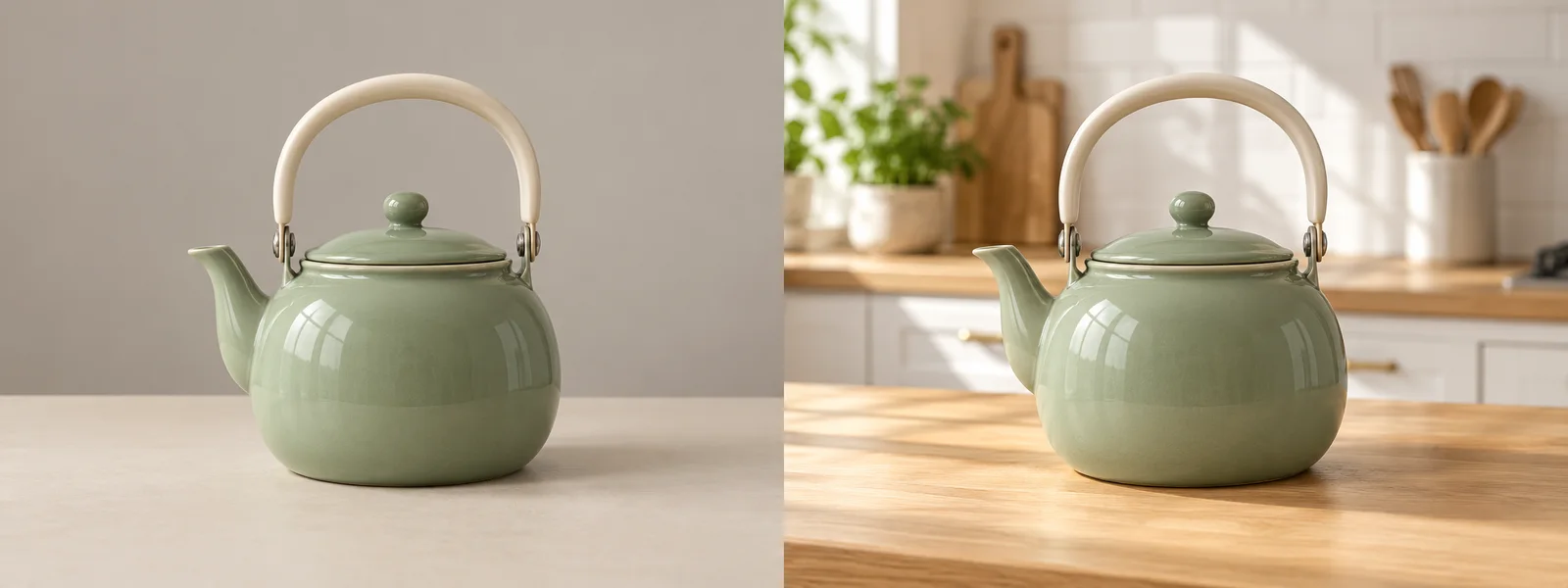
Kettle with a bright kitchen background
Kettle against its original plain background
BEFOREAFTER
Generated with EzFoto AI

Upload Image

Drag & drop or click to browse

JPG, PNG, WebP · Up to 10 MiB each
One source + optional reference

No installFree daily editsAI enhanced

3 Base + 1 Advanced free edits / day · Shared with homepage · Guest verification required

ONE IMAGE, A DIFFERENT VISUAL DIRECTION

See What You Can Create from One Image

Explore a new medium or a different visual style while using your original as a reference. Each example shows the kind of change you can make with a focused prompt.

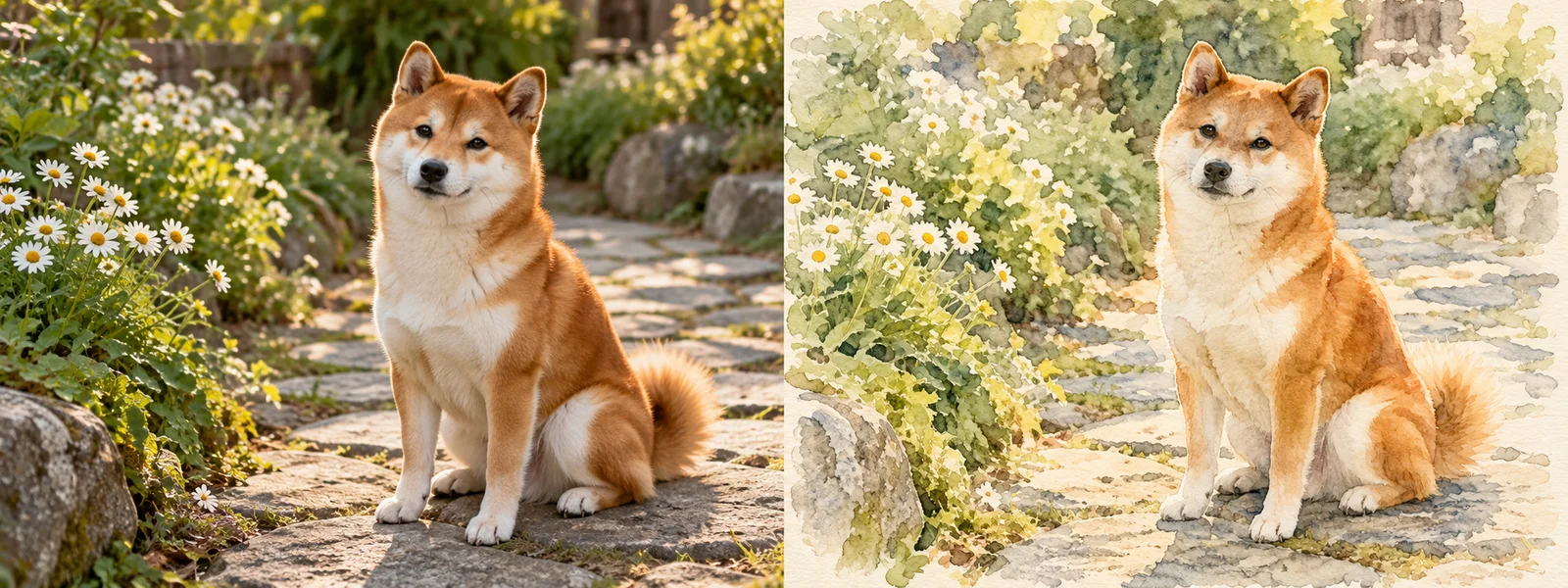
Watercolor version of a seated Shiba Inu beside daisies
Shiba Inu sitting beside daisies on a garden path
BeforeAfter
Generated with EzFoto AI
01 / IMAGE VARIATIONS

Give a pet photo a watercolor style

Explore a softer, painted version of a familiar subject. Ask for a new medium while keeping the pet’s markings, seated pose and framing recognizable.

Ask to keep
Markings, pose and framing.
Ask to change
Painted texture, softer edges and watercolor washes.
Turn this pet photo into a soft watercolor illustration. Preserve the markings, pose, and framing.
Check the result

Compare the ears, fur pattern, paws and garden layout with the source.
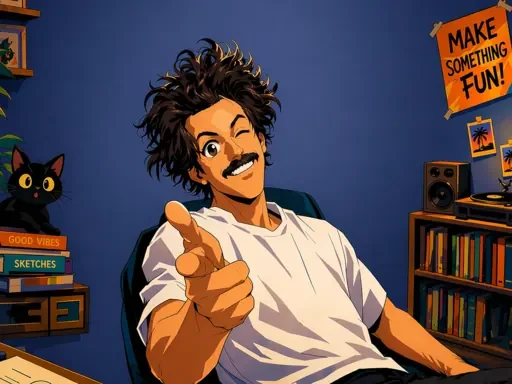
Anime style portrait of a smiling man pointing toward the viewer in a blue room
Generated with EzFoto AI
02 / IMAGE VARIATIONS

Explore an anime version of a portrait

Use a portrait as the visual reference for an illustrated character. Describe the linework and shading, then tell the model which expression, pose and framing matter.

Ask to keep
The main subject, gesture and framing.
Ask to change
Expressive linework, cel shading and an illustrated palette.
Reimagine this photo as a clean anime illustration. Preserve the subject, pose, and framing.
Check the result

Check facial features, hands, clothing and the arrangement of background objects.

UPLOAD. DESCRIBE. COMPARE.

How to Use Image to Image AI

Start from your own photo or illustration, describe a new direction, then inspect the generated version alongside the original.

  1. 01

    Upload a clear starting image

    Choose a JPG, PNG or WebP up to 10 MiB. Start with a photo or illustration containing the subject and layout you want to build on. A clear source makes it easier to judge what the new version should retain.

  2. 02

    Describe the change and what to keep

    Name the new style, setting or lighting. Then list the details that should stay recognizable, such as the subject, pose, colors or framing. Choose a model and aspect ratio, then select Generate and complete verification if prompted.

  3. 03

    Compare and download

    Open the result in My Works and compare it with your original. Check faces, lettering, edges and proportions before downloading. If needed, narrow the request and try another version within your available allowance.

CHANGE + DIRECTION + DETAILS TO KEEP

Image to Image Prompt Examples

Describe the change, name the result you want, and list the features to preserve. Try a prompt below or choose a sketch, anime, fashion editorial or 1980s photo preset in the workspace.

These are starting prompts to adapt to your image. “Try this prompt” fills the editor; upload your own image and select Generate when ready.

Change the style

Reimagine this photo as a clean anime illustration. Preserve the subject, pose, and framing.

Name the style and the visual features you want to keep.

Change the lighting

Use soft golden-hour lighting. Keep the scene layout and main subject recognizable.

Request one lighting change before changing the whole scene.

Create a color variation

Create a new color variation of this concept. Keep the silhouette and object placement similar.

Explore a new palette while using the original structure as a guide.

Use a second style reference

Use the second image only as a style reference. Keep the subject and composition from the first image.

Upload your own second reference and explain the role of each image.

Try a product scene

Place this product on a light stone surface with soft window light. Preserve its shape, colors, and label.

Read the label and compare the shape and contact shadow with the original.

Develop a sketch

Turn this sketch into a clean colored illustration. Follow the object positions and overall layout.

Check for missing objects and changes to the layout.

A NEW VERSION FROM AN EXISTING PICTURE

What Is Image to Image AI?

Image to image AI generates a new image using an existing picture as a visual reference. Your source image guides the subject or layout, while your prompt describes the changes. It is useful for exploring styles, scenes and variations, but the result may change details you wanted to keep.

You may also see this called “img to img” or “img2img.” EzFoto AI brings the source image and text request together in an online generator. It creates a new version rather than converting a file format.

Image to image vs. text to image vs. traditional photo editing
MethodWhat you start withWhen to use it
Image to imageAn existing picture and a text requestExplore a new version of an existing subject or layout.
Text to imageA written description without a required source pictureBuild a new concept when you do not have a starting image.
Traditional photo editingAn original image and manual editing controlsMake precise corrections with direct control over individual areas.
KNOW THE LIMITS BEFORE YOU SUBMIT

Free Limits and What to Expect

Base and Advanced have separate daily allowances, shared with the homepage editor. This page does not add extra uses. Switching pages or models does not refill an allowance. The service checks availability when you submit, and guests complete human verification.

3 edits / dayBase · Qwen Image Edit
1 edits / dayAdvanced · GPT Image 2.5
Input
One required source and one optional reference · JPG, PNG or WebP · Up to 10 MiB each
Prompt
Up to 8,000 characters. Describe the change and the details to keep.
Results
Follow task status, preview and download in My Works. Compare actual image dimensions and details before use.
Failed request
Check My Works before retrying: a timed-out request may still have created a task. Keep the task ID for support; a retry does not guarantee restored daily use.
BEFORE YOU START

Image to Image FAQ

Answers about reference images, keeping a subject recognizable, free use and task handling.

Can AI create a new image from my photo?

Yes. Upload a starting image and describe the new version you want. Your photo provides a visual reference, but the generated result can still change important details.

Is image to image the same as text to image?

Image to image starts from an existing picture and a request. Text to image starts from a written description without requiring a source picture. Use the first when you want to build on a subject or composition you already have.

How can I keep the same subject or composition?

Use a clear source image, request one change at a time, and name the features to preserve. Review the result carefully; a prompt cannot guarantee identical faces, labels or shapes.

Why does the AI change faces or small text?

The output is newly generated rather than a perfect copy of the source. Fine details can shift. Try a clearer reference and a narrower request, and compare identity, lettering and proportions with the original.

Is EzFoto AI image to image free?

EzFoto AI offers 3 Base and 1 Advanced free edits per day. These are separate model allowances shared with the homepage editor, not extra allowances for this page. Human verification and an availability check apply at submission.

Do I need to sign up?

The editor supports guest submissions without creating an account. You still need to complete human verification and have available daily use. Guest task history is stored in the current browser and does not sync across devices.

What happens to my uploaded images?

Selecting a file creates a local preview. Submitting sends your images, prompt and settings to EzFoto AI and its model providers for processing. Removing a task from local My Works does not delete backend or provider copies. See the Privacy Policy for more details and deletion requests.

What should I do if a task fails or times out?

Check My Works before submitting again, because a timed-out request may still have created a task. Keep its task ID and contact [email protected] if you need help. Do not assume that retrying restores a daily use.

YOUR PHOTO, A NEW DIRECTION

Create a new version from your image.

Describe what should change and keep your original for comparison.

Upload an image and try a new version
LET’S CREATE SOMETHING

Welcome to EzFoto AI.

Turn your photos into something extraordinary. Sign in to continue your creative journey.

One account. All your creative tools.