AI Photo Restoration – Restore Old Photos Online

Use EzFoto AI’s photo restoration tool to colorize old photos with four guided presets.
Free daily attempts. Review faces, colors and details in My Works before downloading.

Illustrative family birthday photo in colorIllustrative faded version of the family photoBEFOREAFTER
Illustrative preview · Effects simulated, not a restoration result

Upload Image

Drag & drop or click to browse

JPG, PNG, WebP · Up to 10 MiB
One photo at a time · No account needed

No installFree daily editsAI enhanced

Free daily use · No app install · Guests verify before editing

THE PHOTO, AND THE PEOPLE IN IT

AI photo restoration starts with a readable original.

AI photo restoration edits a digital copy of an old photograph. EzFoto AI’s current photo restorer uses colorization presets to request natural-looking colors and preserve the appearance of people and scenes. Results can contain reconstructed details.

Start with a family photograph, an old portrait or a landscape whose main details are still visible. Keep the original file so you can judge whether the edited version still represents the same people, place and moment.

Try your old photo
THE PHOTOS IN YOUR ALBUM

Old photo restoration for family albums and portraits

Choose a starting photo with details you can recognize and check. These illustrations show common subjects, rather than measured restoration results.

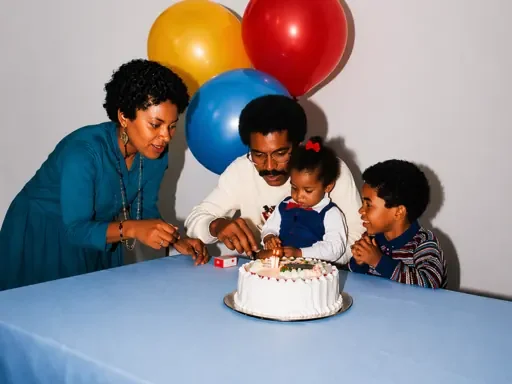
Illustrative family birthday scene with parents and children gathered around a cake
01 / PHOTO RESTORATION

Colorize old family photos

Old family photos often contain several faces, patterned clothes and familiar objects. Start with a scan in which those details are readable. The General preset requests natural colors while asking the model to preserve the people and composition.

Check the result

Check every face, the number of people and clothing patterns. New colors are an interpretation; compare them with other photographs or your own knowledge of the scene.
Try a family photo
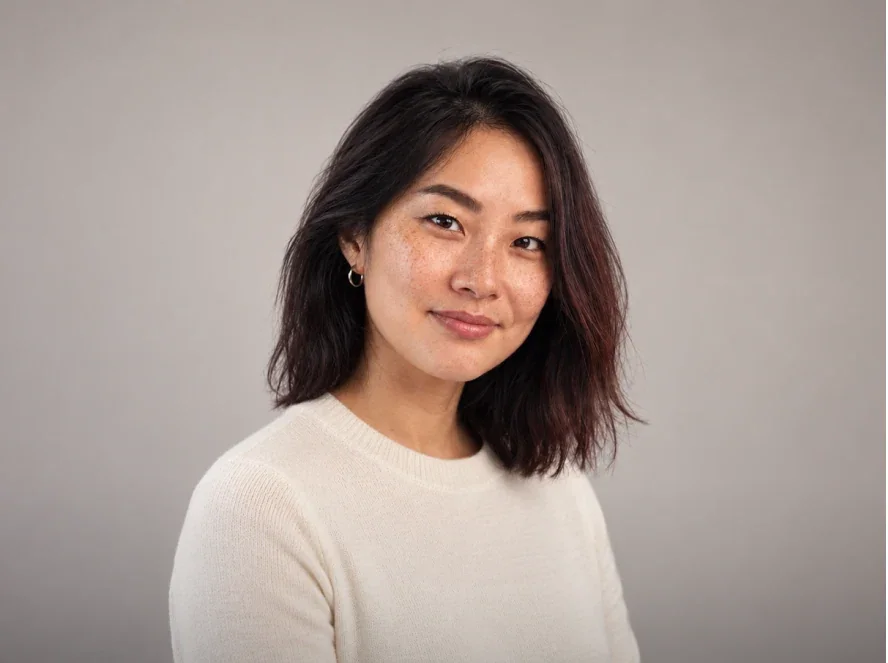
Illustrative close portrait of a woman with visible facial expression and natural skin texture
02 / PHOTO RESTORATION

Keep familiar faces recognizable

For old portraits, likeness matters more than extra sharpness. The Portrait preset asks for natural skin and hair colors while preserving the expression, pose and facial features. A readable face gives you a clearer basis for reviewing the edit.

Check the result

Compare the eyes, mouth, hairline and apparent age at the same viewing size. AI may reconstruct details, even when the instruction asks to preserve identity.

Try a portrait
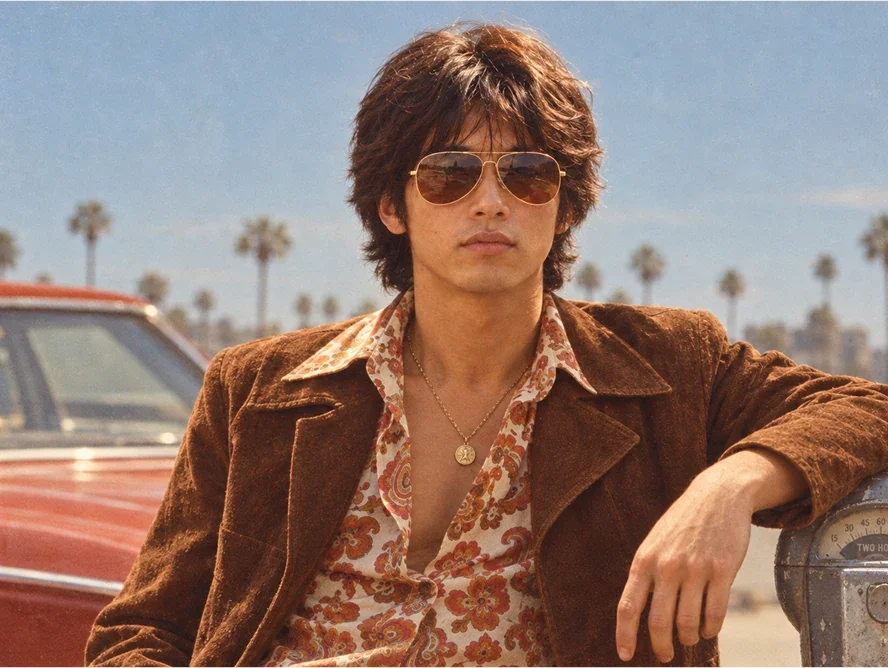
Illustrative vintage-style portrait with a brown jacket, patterned shirt and red car
03 / PHOTO RESTORATION

Preserve the atmosphere of vintage photos

Film grain, muted colors and period clothing can be part of what makes a photograph meaningful. The Realistic preset requests a restrained palette and an aged appearance instead of deliberately modernizing the scene.

Check the result

Check fabric textures, grain and familiar objects for unwanted changes. Keep the original scan alongside any edited version so the source record remains available.

Try a vintage photo
THREE STEPS, ONE PHOTO AT A TIME

How to restore old photos online

Upload your photo, select a preset, and review the result in My Works. You do not need to write a prompt or install an app.

  1. 01

    Upload a digital copy

    Choose one JPG, PNG or WebP up to 10 MiB. Use your original scan or a clear phone photo of the print. Selecting a file opens a preview; it does not submit a task.

  2. 02

    Choose a model and style

    Select Base or Advanced, then General, Realistic, Portrait or Landscape. Each style supplies a colorization instruction automatically. Select Restore photo and complete verification if prompted.

  3. 03

    Review and download in My Works

    After a task is created, EzFoto AI opens My Works. Wait for its result, compare it with your saved original, and use the download control. Check faces, colors and small details before sharing.

FOUR PRESETS. FOUR SUBJECTS.

Choose a style for your old photograph

Each style changes the instruction sent to the selected model. All four presets request colorization; the style names describe editing goals, not guaranteed results.

01

General

Family groups and mixed scenes

Requests natural colors while preserving faces, clothing, composition and the original atmosphere.

What to checkCompare every person, clothing patterns and objects in the background.

02

Realistic

Vintage photos with readable detail

Requests subtle skin, fabric and background colors while retaining grain and an aged appearance.

What to checkLook for oversaturated colors, lost grain or textures that appear newly invented.

03

Portrait

Old portraits and individual faces

Requests natural skin and hair colors without deliberate skin smoothing or changes to the pose.

What to checkCheck eye and mouth shape, expression, age and hairline against the original.

04

Landscape

Scenery, streets and buildings

Requests plausible sky, foliage, building and ground colors without modernizing the scene.

What to checkCheck perspective, signs, architectural details and the position of objects.

KNOW THE RULES BEFORE YOU UPLOAD

Free daily attempts, with clear limits

Base photo restoration has its own daily allowance, separate from Base photo editing. Advanced shares the GPT Image allowance with the photo editor. Switching pages does not refill an allowance, and Base attempts do not become Advanced attempts.

No account is required to submit an edit. Guests complete human verification before processing, and the service checks the available allowance when you submit.

3 attempts / dayBase · Qwen Photo Restoration
1 attempts / dayAdvanced · GPT Image 2.5
Input
One JPG, PNG or WebP · Up to 10 MiB
Processing
Image and instructions sent to EzFoto AI and model providers on submission
Results
Task status, preview and download in My Works
Output size
Check the downloaded file; no fixed enlargement or print-size guarantee
Privacy
Browser history is separate from backend storage. Read the Privacy Policy.
COMPARE THE DETAILS THAT MATTER

Judge the restoration, not just the sharper appearance

A clearer image can still be less faithful to the original. Compare the full frame first, then inspect faces, text and fine textures before saving a version to share.

Faces and identity

Compare eye spacing, mouth shape, age, hairline and expression. For a family group, check every face. A more detailed face may be a reconstruction rather than a recovery of missing information.

Colors and atmosphere

Treat new colors as an interpretation. Check skin tones, clothing and familiar objects for unwanted color shifts. Film grain and fading may also change despite preservation instructions.

Text and composition

Read signs, dates and handwritten details against the source. Check the number of people, building shapes and object positions. Do not use an AI-generated detail as historical evidence.

A BETTER STARTING FILE

Prepare a scan or phone photo

Use the most detailed digital copy you have. AI cannot reliably recover information already lost to glare, missing paper or repeated compression.

  • Scan a print if you can, and save an untouched master copy.
  • With a phone, place the print flat in even light and keep the camera parallel to it. Avoid flash reflections and deep shadows.
  • Crop out the surrounding table without cutting into the photograph. Avoid screenshots of screenshots.
BEFORE YOU START

Photo restoration FAQ

Direct answers about free use, colorization, faces and your files.

Can I restore old photos online for free?

EzFoto AI provides free daily attempts: 3 with Base (Qwen Photo Restoration) and 1 with Advanced (GPT Image 2.5). Base restoration has its own allowance, separate from the photo editor’s Base allowance. Advanced shares the GPT Image allowance with the photo editor. The service enforces availability when you submit.

Can I keep a black-and-white photo black and white?

The four presets on this page all request colorization, so they are not a black-and-white preservation mode. For a custom request to retain black-and-white or sepia tones, use the AI photo editor and describe that goal. Preservation instructions do not guarantee identical output.

Will AI photo restoration change someone’s face?

It can. AI may change facial features, age or expression, especially when a face is small, blurred or damaged. The Portrait preset asks the model to preserve identity, but that instruction is not a guarantee. Compare the result with the original face.

Can AI repair a badly torn or water-damaged photo?

Missing image information cannot be reliably recovered from a damaged copy. AI may invent plausible details, and this page has no targeted tear-repair or scratch-removal control. For large missing areas, damaged faces or archival work, consider manual restoration and keep the original.

Are my photos processed only on my device?

No. Selecting a photo prepares a local preview, but submitting a task sends the image, instruction and settings to EzFoto AI’s service and model providers. My Works stores task history in this browser. Removing a local history entry does not delete backend or provider files.

Can I print the restored photo?

Check the downloaded file’s actual pixel dimensions and visible detail before choosing a print size. This page does not offer a fixed 4K output or an upscaling factor. A clearer-looking preview is not a guarantee that the file will suit a large print.

How long does AI photo restoration take?

There is no fixed completion time. Processing depends on the selected model and service availability; follow the task status in My Works. If a request times out, check My Works before submitting again because a task may already exist and an attempt may have been counted.

Does photo restoration recover deleted photos?

No. An AI photo restorer edits an image file you can open and upload. It does not recover deleted files, restore cloud backups or repair an unreadable JPG. You need a usable digital copy of the photograph first.

START WITH THE PHOTO YOU HAVE

Give an old photo a careful refresh.

Choose a preset, review the result, and keep your original alongside the version you prefer.

Upload an old photo
LET’S CREATE SOMETHING

Welcome to EzFoto AI.

Turn your photos into something extraordinary. Sign in to continue your creative journey.

One account. All your creative tools.