EzFoto AI’s pose generator changes a person’s body position in an existing photo using a second image as a pose reference. Upload the person, choose a reference, and generate a new still image without writing a prompt or creating an account.
The person photo guides appearance and clothing. The reference guides posture, such as a standing stance, a seated position or an arm gesture. The generated edit can change other details too, so compare the result with the original before downloading.
Required inputs
One person photo + one pose reference
Reference choices
172 demo poses or your own image
File support
JPEG, PNG, WebP · Up to 10 MiB each
Output
A generated still image, viewed in My Works
How to change a pose in a photo
Use a person photo and a separate pose reference to guide the edit. The same four steps apply whether the reference comes from the demo library or your own upload.
01
Upload the person photo
Use one clear photo of the person whose pose you want to change. Include the body parts needed for the new pose. JPEG, PNG and WebP are supported, up to 10 MiB per image.
02
Choose a pose reference
Open Use a demo to browse 172 templates, or choose Upload your own. The person photo supplies the appearance; the second image guides the body position. Both images are required.
03
Select a model and generate
Choose AI Pose · Banana 2.1 or Advanced · GPT Image 2.5 and an aspect ratio. Select Generate and complete verification if prompted. The workspace supplies the editing instruction, so you do not need to write a prompt.
04
Review and download in My Works
My Works opens after the task is created and checks its progress. Preview the completed image, inspect the details, and download a copy. Check an existing task before submitting it again.
EzFoto AI offers Banana 2.1 and GPT Image 2.5 for pose editing. Guests can use either model after human verification. Banana 2.1 has a separate pose allowance; GPT pose edits share the homepage GPT allowance.
Current workspace settings and allowances, checked November 8, 2026. These are feature differences, not a measured image-quality ranking.
Feature
AI Pose · Banana 2.1
Advanced · GPT Image 2.5
Model in the workspace
AI Pose · Banana 2.1
Advanced · GPT Image 2.5
Free daily attempts
1 pose attempt, separate from the homepage photo editor
1 attempt, shared with GPT Image 2.5 edits on the homepage
Default output setting
Fixed 1K; output format is determined by the provider
Low quality, PNG; pixel dimensions depend on the model and aspect ratio
Daily allowances reset at midnight in New York time. Limits apply to attempts and are checked by the service; they are not an unlimited-use offer. These pose edits are available without payment within the stated daily allowances.
Banana 2.1 is selected by default. Switch models to explore a different interpretation of the same references. Your images stay loaded, and a ratio that the new model does not support resets to Original. The “Advanced” label identifies the GPT option; it does not establish that GPT will preserve every pose or garment more accurately.
Pose reference examples: standing and seated
A reference image can describe several body relationships at once: the angle of the torso, the bend of a knee and the placement of a hand. The illustrations below explain those choices; they are not verified results from either selectable model.
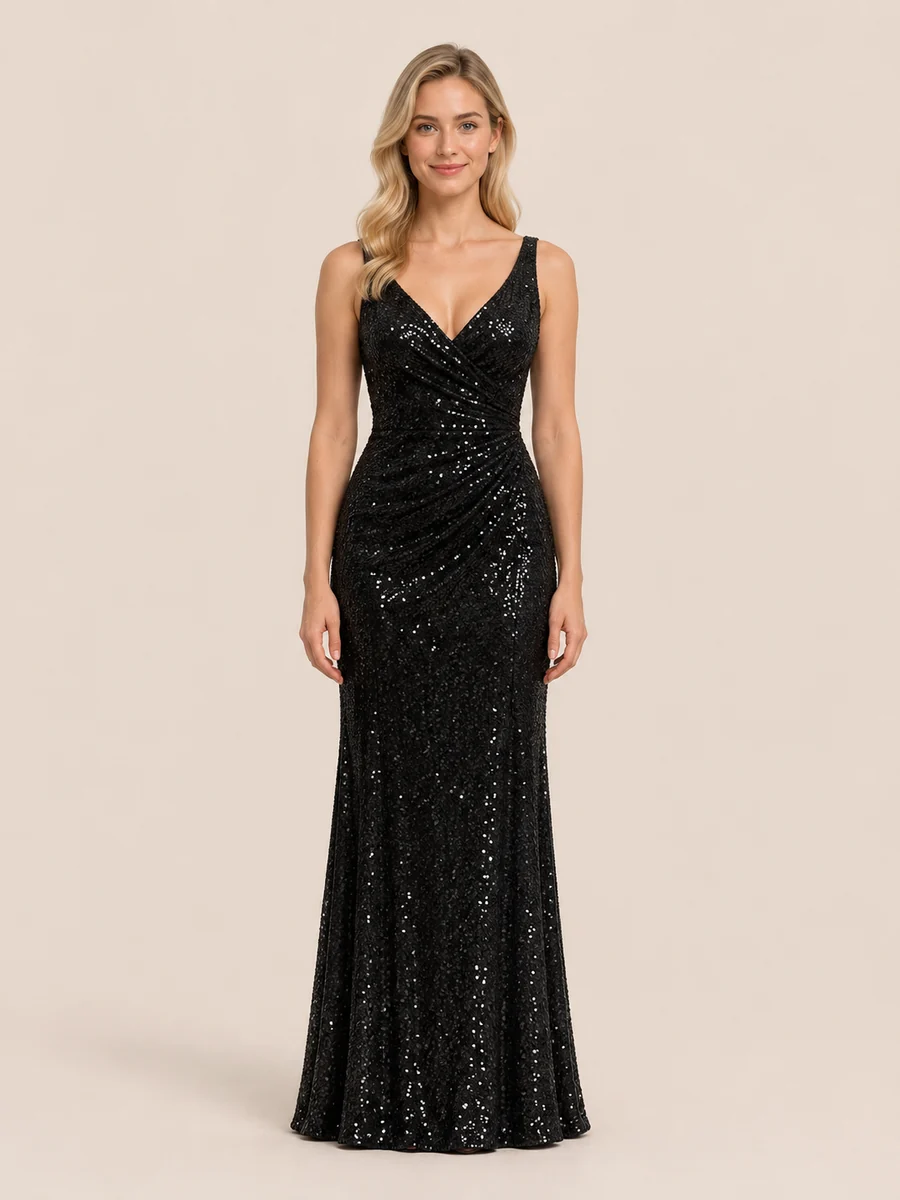
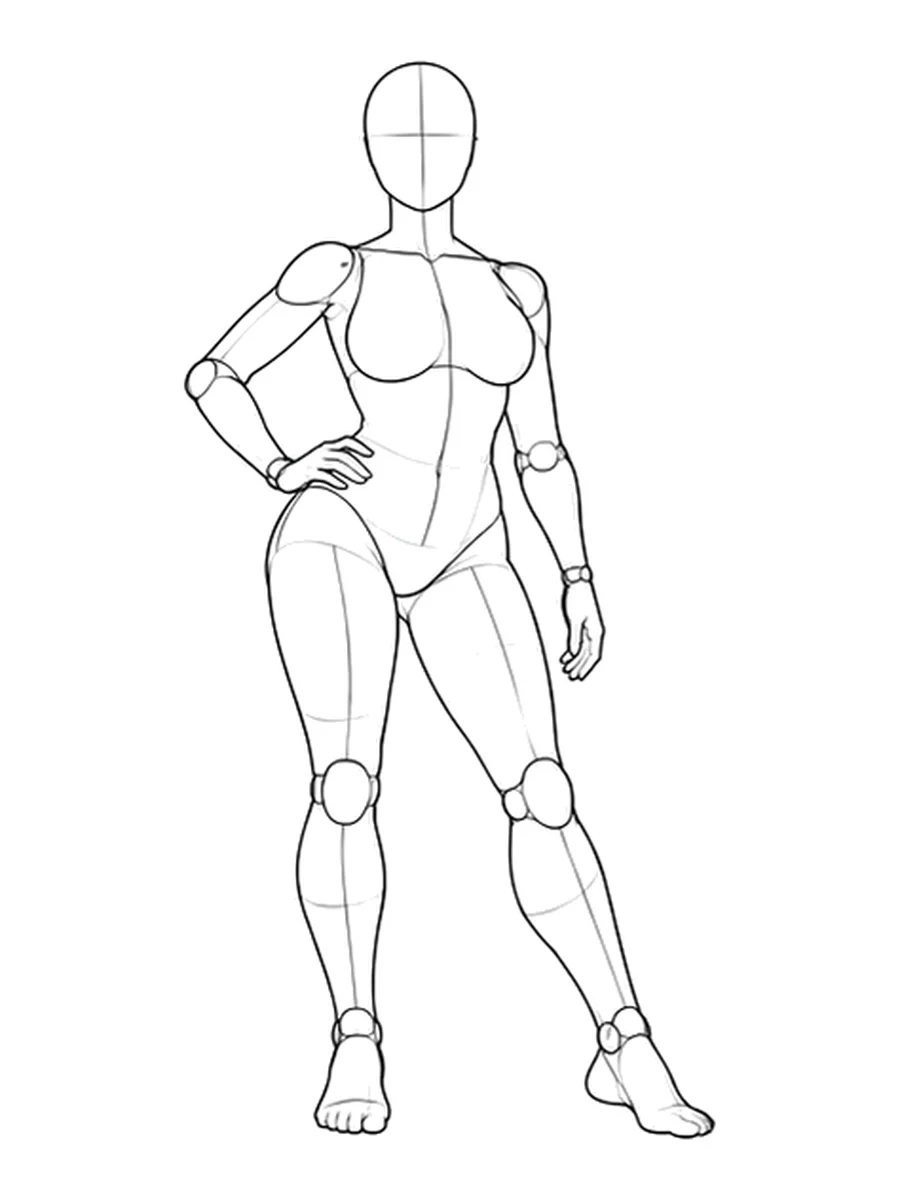
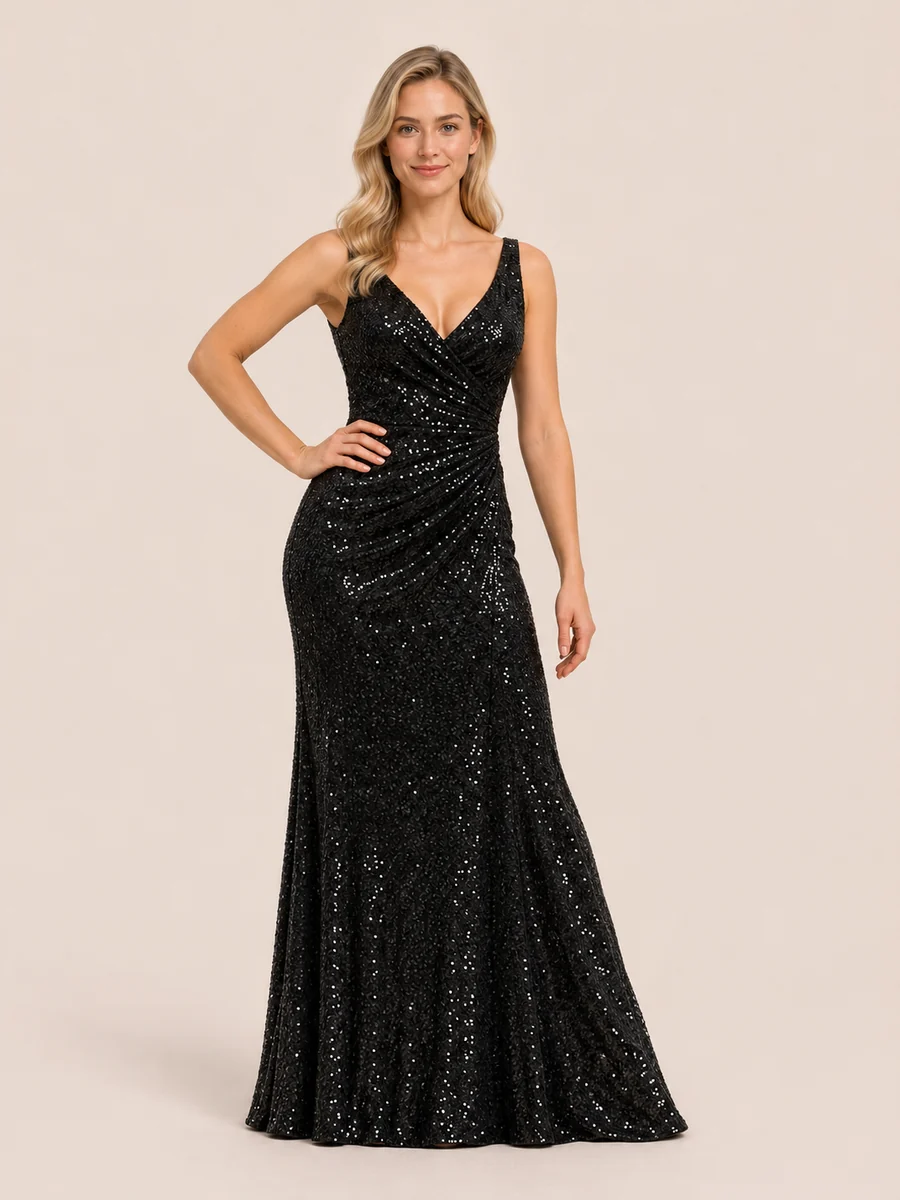
REFERENCE P015
Standing portrait with one hand on the hip
A standing reference can guide the bent elbow, hand placement and weight shift together. Start with a photo that shows the waist and arms clearly.
Review after generation: Check the fingers at the hip, the elbow connection and the gown’s sequin pattern.
Person illustrationP015 pose referenceAI pose illustration
REFERENCE P012
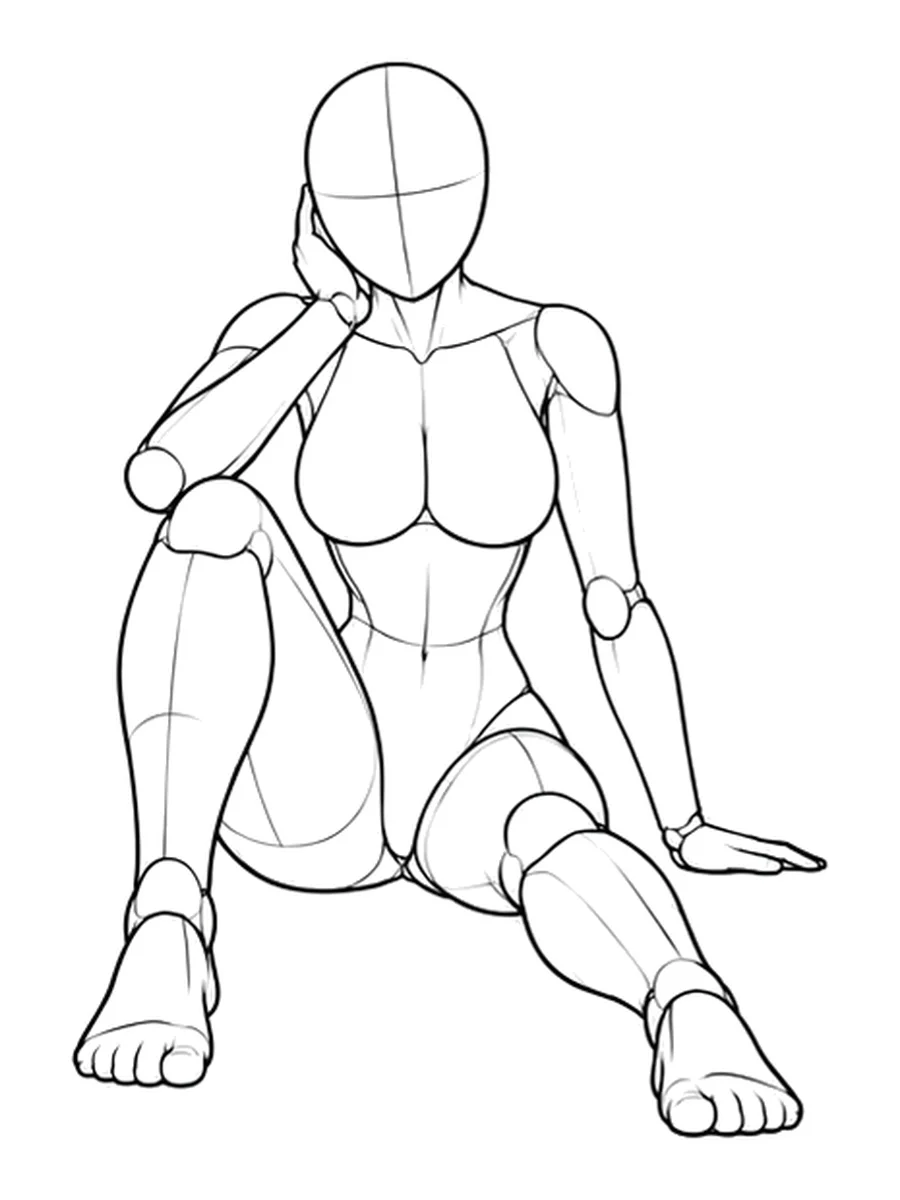
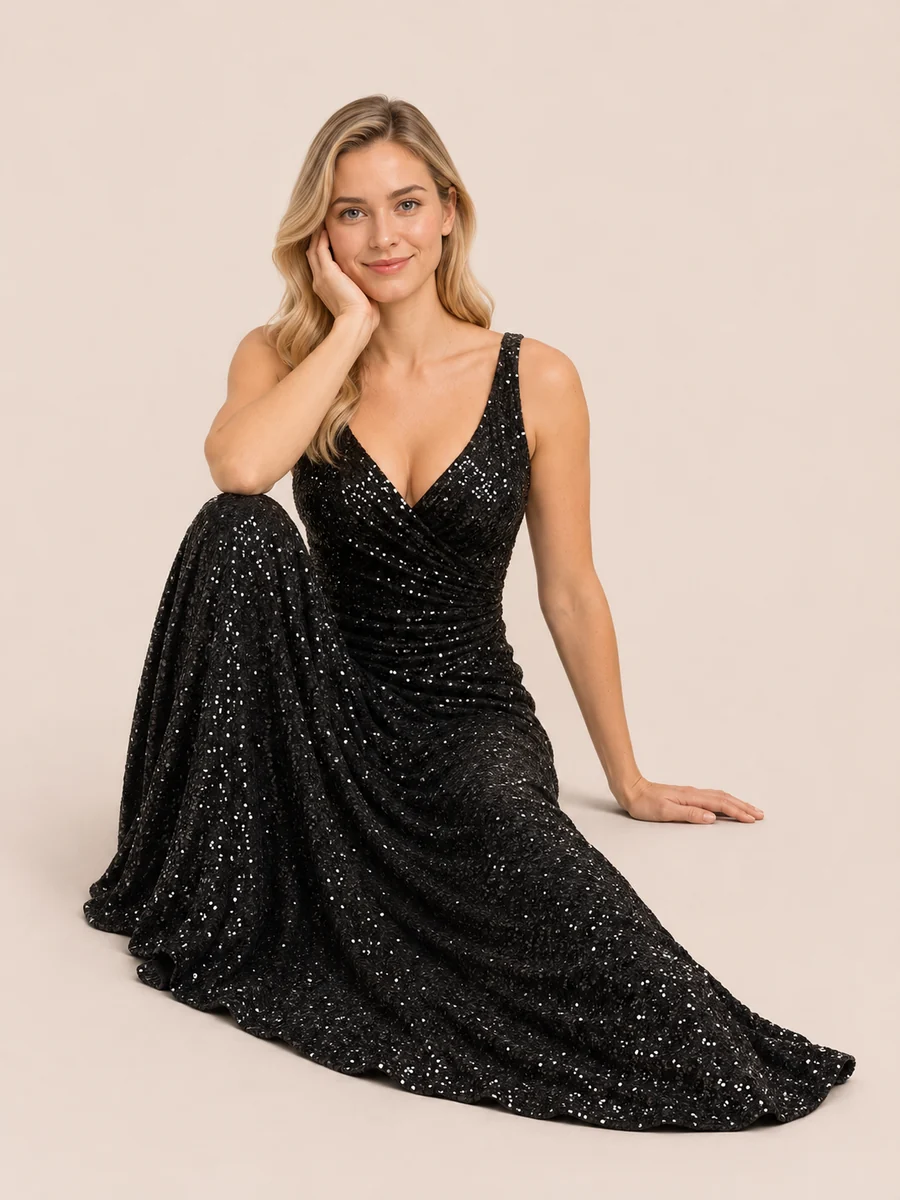
Floor-seated pose with one knee raised
A seated reference communicates the knee bend and supporting hand. Use a full-body source that shows the outfit and hem; a long skirt can conceal the exact leg position.
Review after generation: Check the supporting wrist, the knee silhouette, skirt folds and contact with the floor.
Person illustrationP012 pose referenceAI pose illustration
Which photos and pose references work best?
Choose clear inputs that show the person’s appearance and the body position you want. AI has to invent information that neither image shows; better coverage gives the edit more visible detail to work from.
Show the body parts you want to move
A full-body source is more informative for a full-body pose than a tightly cropped selfie. Keep relevant hands, legs and shoes in frame. Use a sharp image with one clearly visible person.
Make posture easy to read
Choose a reference with visible limb positions and a clear viewing angle. For seated poses, include the supporting hand, chair or floor contact. An overlapping arm can make the intended placement ambiguous.
Start with a smaller pose change
Try a hand-on-hip stance before a large turn or a floor-seated position. A larger change can expose the back of a garment or a hidden hand that the source photo cannot document.
In the demo dialog, search a pose name or ID and filter by series or category. Mobile pages show four poses; desktop pages show twelve. Selecting a pose closes the dialog and adds its reference to the workspace.
When to use a photo pose changer
Use pose editing to explore portrait compositions and visual concepts when you already have a person photo. Treat the result as a generated interpretation, especially when accurate anatomy or product details matter.
Portrait and social compositions
Explore a different silhouette or arm position before choosing a portrait direction. Review facial features and proportions before sharing an image as a likeness of the person.
Fashion and outfit concepts
Compare standing and seated outfit compositions using the same source. Check fit, seams, patterns and logos before any product use; newly exposed fabric may be invented.
Drawing and pose studies
Use reference-guided images to explore a character’s stance or composition. Check anatomy independently. EzFoto AI exports a still image, not a 3D model, skeleton, animation or rig.
For background changes or edits that you want to describe in words, use the AI Photo Editor. This pose workspace supplies its instruction automatically and has no custom prompt field.
What to check before downloading a new pose
A pose reference does not guarantee an exact copy of the person or the posture. Compare the generated image with both inputs before using it.
Face and identity: check facial features, hairstyle, skin texture and the direction of the head.
Hands and anatomy: count fingers and inspect wrists, elbows, knees and limb connections.
Clothing and products: compare logos, text, seams, fabric patterns and garment length with the source.
Scene and support: check shadows, background edges and contact with a chair or the floor.
If a detail changes, try a clearer reference or a smaller movement in a new task. Download completed images from My Works; keep a local copy because result links can expire.
AI pose generator FAQs
Can I change a pose in a photo without writing a prompt?
Yes. EzFoto AI supplies the pose-editing instruction automatically. Upload the person photo and a pose reference, choose a model, and generate. This workspace has no custom prompt field.
Is the AI pose generator free without signing up?
Yes, within the daily allowances. AI Pose · Banana 2.1 includes one free pose attempt per day, separate from homepage photo edits. Advanced · GPT Image 2.5 includes one daily attempt shared with homepage GPT edits. No account is required; the service checks the available allowance before creating a task.
When do the free pose attempts reset?
The daily limits reset at midnight in America/New_York time, including daylight-saving changes. Guest limits are checked using the browser and IP address. Signed-in edits use credits. The limits count attempts, so do not assume a failed attempt is automatically restored.
Can I copy a pose from another photo or a drawing?
You can upload another photo or a pose drawing as the reference. The second image guides posture rather than promising an exact body match. Choose a reference with clear limbs and a visible body angle, and use images you have permission to edit.
Will the face, outfit and background stay unchanged?
Exact preservation is not guaranteed. The person photo guides identity and clothing, but a new pose can redraw the face, hands, fabric or background. Review logos, seams, proportions and newly visible areas before using the image.
Can I generate multiple people or several poses at once?
The workspace is designed around one person photo and one active pose reference per task. Use one clearly visible person for a more interpretable reference. Group pose transfer and batch pose generation are not separate controls in this tool; trying another pose requires another task.
How long does a pose generation take?
Completion time varies with the model and processing queue; this page does not promise a fixed turnaround time. My Works tracks a created task. If a status check is interrupted, check that task again before starting another generation.
Where are my generated images saved?
Task history and result links are saved in the current browser and do not automatically sync across devices. Open My Works to preview and download a completed image. Result links can expire, so download the images you want to keep.
Are my uploaded photos processed only in my browser?
No. Selecting a photo creates a local preview, but generating sends the person photo and active pose reference to the processing API. Removing a local history entry does not delete backend or provider files. Read the Privacy Policy for processing and storage details.
Prepared by EzFoto AI. Feature and limit information checked against the workspace and its processing configuration. The examples are AI-generated illustrations, not a model benchmark.